

Go to Settings > Accessibility > Voice Guide and switch it off.
I’ve fixed voice prompts on Samsung TVs many times. This guide shows simple, tested steps on how to turn off voice on samsung tv for most models. You’ll get clear steps for Voice Guide, Bixby, audio descriptions, and what to do if the voice keeps coming back. Read on to stop unexpected narration fast and keep your TV quiet.

Why your Samsung TV is talking
Samsung TVs speak for a few reasons. They have accessibility features like Voice Guide and audio description. They also have voice assistants such as Bixby that can speak back. Knowing which feature is active makes it easy to turn off voice on samsung tv.

Quick, step-by-step: Turn off voice on Samsung TV
Follow these short steps to stop the voice now:
- Press the Home button on your remote.
- Go to Settings.
- Select Accessibility.
- Choose Voice Guide and set it to Off.
If you have Bixby, press the mic button and say “turn off voice” or go to Settings > General > Bixby and disable voice features. These steps cover the usual ways to turn off voice on samsung tv.
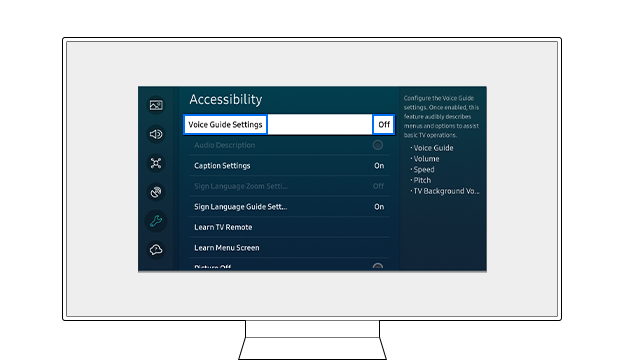
Turn off Voice Guide via Settings (detailed steps)
This is the common method that works on Tizen-based Samsung TVs:
- Press Home on the remote.
- Navigate to Settings.
- Select Accessibility.
- Select Voice Guide.
- Toggle Voice Guide to Off.
If your remote is not a smart remote:
- Press Menu.
- Go to System or Accessibility.
- Find Voice Guide and turn it off.
If the menu uses different labels, look for terms like “Voice Guide,” “Audio Guidance,” or “Screen Reader.” These steps will stop the spoken menus and audio prompts so you can enjoy silence. Turning Voice Guide off is the main way to disable how to turn off voice on samsung tv behavior.

Disable Bixby and other voice assistants
Bixby or other assistants can speak when they are active. To turn Bixby off:
- Press Home and go to Settings.
- Open General > Bixby Voice settings.
- Disable Voice Wake-Up and Voice Responses.
If you use a connected device (soundbar, Alexa, Google Home), check those device settings too. Disabling them prevents the assistant from speaking and helps with how to turn off voice on samsung tv when voice comes from a connected gadget.
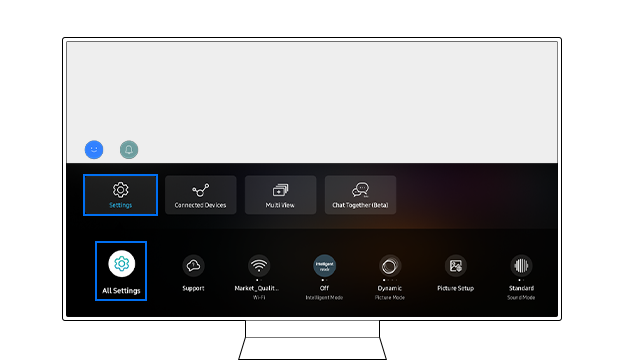
Turn off Audio Description and narration
Audio Description (also called AD or narrative) reads visual scenes out loud. To turn it off:
- Go to Settings > Accessibility.
- Find Audio Description or Narration.
- Toggle it Off.
On some apps (Netflix, Prime Video), audio description is set inside the app. Open the app’s audio or accessibility settings and choose the standard audio track. This stops the narrator voice for shows and movies and is an important step to fully turn off voice on samsung tv.

If voice keeps coming back: troubleshooting
If the voice returns after being turned off, try these quick fixes:
- Restart the TV by unplugging it for 30 seconds.
- Update the TV software in Settings > Support > Software Update.
- Check for stuck or programmed remote buttons.
- Disconnect Bluetooth or HDMI devices one at a time to find the source.
I once had narration return because a soundbar’s Bluetooth remote re-enabled an audio description mode. Removing the pairing solved it. These checks help ensure the fix to turn off voice on samsung tv holds.

Tips and best practices
Small habits stop accidental voice activation:
- Keep the remote mic button covered or teach family members where it is.
- Turn off voice features in streaming apps after installing them.
- Create a quick checklist: Voice Guide off, Bixby off, AD off, connected devices checked.
- Save your TV settings backup if your model supports it.
These tips cut repeat visits to settings and make the fix for how to turn off voice on samsung tv last longer.
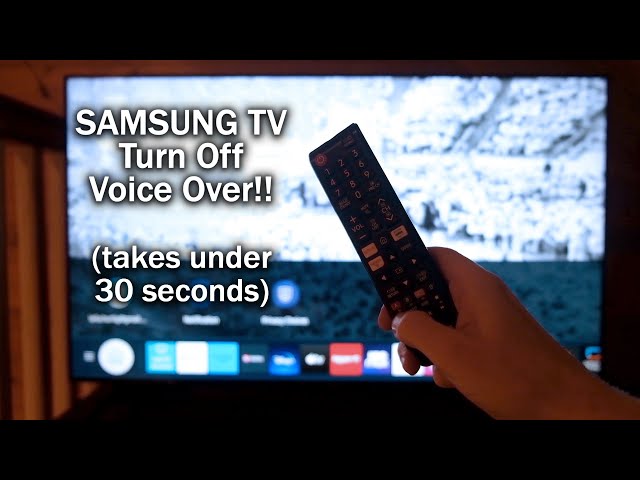
Frequently Asked Questions of how to turn off voice on samsung tv
Why does my Samsung TV suddenly speak menus out loud?
Your TV likely has Voice Guide or Audio Description turned on. Check Settings > Accessibility and turn Voice Guide or Audio Description off to stop the spoken menus.
My TV keeps talking after I turn Voice Guide off. What now?
Restart the TV and update the software. Also check connected devices and apps, because narration can come from external sources or streaming apps.
How do I turn off Bixby voice responses?
Open Settings > General > Bixby Voice settings. Disable Voice Wake-Up and Voice Responses. You can also unpair the TV from Samsung account voice features.
Where do I disable audio description for Netflix or Prime?
Open the app while playing the show. Select the audio or accessibility track and switch from the descriptive audio track to the standard audio track.
Does turning off voice affect subtitles or closed captions?
No. Voice Guide and audio description are separate from subtitles. Turning off voice will not turn off captions. You can manage captions in Settings > Subtitle or Accessibility.
Conclusion
You can stop spoken prompts by turning off Voice Guide, disabling Bixby, and switching off audio descriptions. Follow the step-by-step methods here and run the quick troubleshooting checklist if the voice returns. Try the steps now and enjoy a quiet TV experience. If this guide helped, leave a comment, subscribe for more tips, or share which Samsung model you own so I can help further.