

You can download apps on your Samsung TV from the Apps store using your remote in minutes.
I’ve helped many people get more from their TVs, and this guide shows exactly how to download apps on Samsung TV step by step. I will explain which Samsung models support apps, how to prepare your TV, the easiest download steps, alternative methods, and simple fixes for common problems. Read on to quickly and confidently add the apps you want to your Samsung TV.

Which Samsung TVs support apps?
Most modern Samsung Smart TVs use the Tizen OS and have a built-in Apps store. Older models may not support apps or may have a very limited catalog. If your TV was made in the last 6–7 years, it likely supports downloading apps.
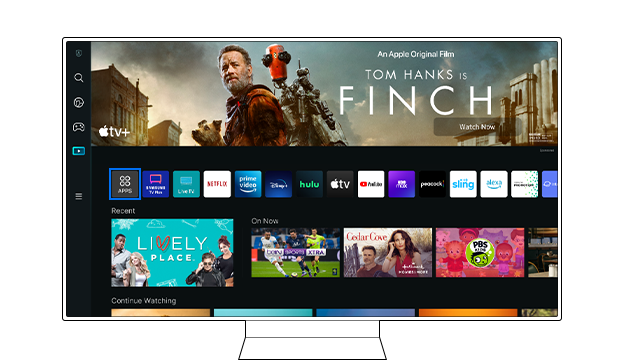
How to download apps on Samsung TV starts with checking your model and OS. Look in Settings > Support > About TV to see model details. If you see the Apps or Smart Hub on the home screen, your TV is ready.
Prepare your Samsung TV before downloading apps
Good setup makes downloading fast and painless. Do these quick checks.
- Connect to the internet: Use Settings > Network to join Wi-Fi or Ethernet. A stable connection avoids failed downloads.
- Sign in with a Samsung account: Go to Settings > Accounts > Samsung Account. Some apps need an account.
- Check storage space: Apps need room. Go to Settings > Support > Device Care to view storage and clear cache if needed.
- Update TV software: Install the latest firmware via Settings > Support > Software Update. New updates fix bugs and add app support.
I once tried to install a streaming app and it failed until I updated the TV firmware. Updating solved it in under five minutes and the app installed smoothly.

How to download apps on Samsung TV: step-by-step
Follow these steps to find and install apps on most Samsung Smart TVs.
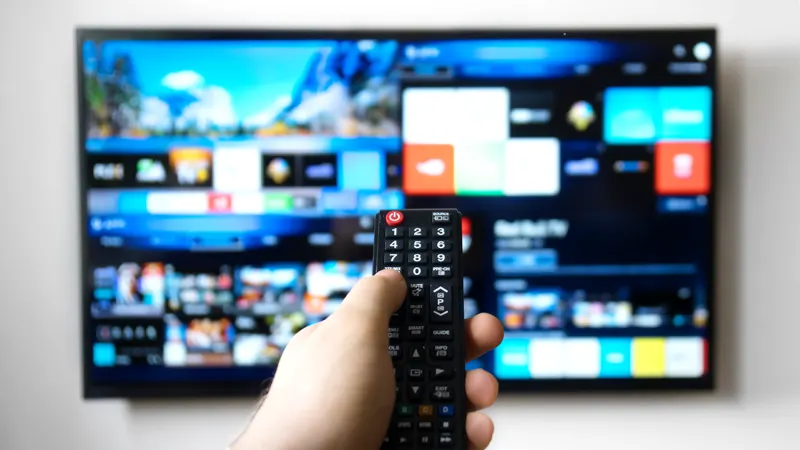
- Turn on your Samsung TV and press the Home button on the remote.
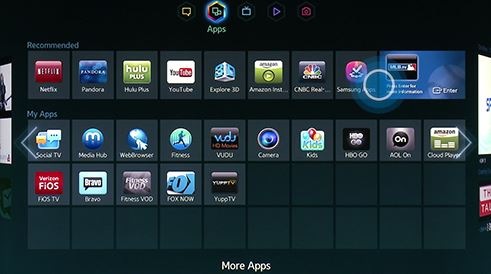
- Navigate to Apps or the Apps icon on the Smart Hub.
- Use the search bar or browse categories like Video, Games, Lifestyle.
- Select the app you want to download.
- Choose Install or Download and wait a few seconds.
- Open the app from the Apps menu or add it to the Home screen for quick access.
If an app requires sign-in, follow on-screen prompts. For paid apps, confirm payment through your Samsung account. This is the core process for how to download apps on Samsung TV and it works on most Tizen-powered sets.

Installing apps from the Samsung Apps store (details and tips)
The Apps store is the safest place to get apps for Samsung TVs. Here are some tips to make the most of it.
- Use search wisely: Type part of the app name. Auto-suggest helps find matches fast.
- Read app details: Check ratings, size, and description before installing.
- Use categories: Browse categories to discover apps you might like.
- Manage installed apps: Remove or update apps from the Apps > My Apps section.
- Set parental controls: Lock apps or restrict purchases in Settings > Broadcasting or General.
From personal experience, browsing categories uncovers useful niche apps I wouldn’t find by search alone. I keep a small set of favorite apps on the home screen for quick launch.
Alternative ways to add apps or content
If an app isn’t available on your Samsung TV or you prefer another route, try these options.
- Use a streaming stick or box: Devices like Roku, Fire TV, or Chromecast add app support without changing the TV.
- Cast or mirror from phone: Use Smart View or screen mirroring to stream apps from your phone to the TV.
- Install via USB (limited): Some TVs let you update or add software via USB, but this is rare for apps.
- Use the Samsung SmartThings app: Control and cast content from your phone using SmartThings.
These alternatives are useful when learning how to download apps on Samsung TV hits a roadblock. I keep a small streaming device handy for older TVs that lack app support.
Troubleshooting common issues when downloading apps
Problems happen. Here are quick fixes for the most common ones.
- App won’t download or install: Restart the TV, check internet, update firmware, then try again.
- App crashes or won’t open: Clear app cache or reinstall the app from Apps > My Apps.
- Not enough storage: Remove unused apps or clear cache in Settings. Consider using a streaming device.
- App not available in your region: Use a VPN on another device or check if the app has a supported regional version.
- Sign-in problems: Verify your Samsung account and reset the app’s sign-in if needed.
I once fixed a stalled install by unplugging the TV for 30 seconds and then updating the firmware. It was a simple power cycle, but it worked.

Tips and best practices for app management
Keep your TV running well and your apps easy to access with these habits.
- Update apps regularly to get new features and fixes.
- Keep a short list of favorite apps on the Home screen.
- Use a wired Ethernet connection for large app downloads.
- Limit auto-updates if you have limited bandwidth.
- Back up or note important login info for paid apps and streaming services.
Following these tips makes how to download apps on Samsung TV predictable and stress-free. Small habits save time later.

Frequently Asked Questions of how to download apps on samsung tv
How do I know if my Samsung TV can install apps?
Most Samsung Smart TVs made in recent years support apps. Check for the Apps icon on the Home screen or look under Settings > Support > About TV for model details.
Why can’t I find a specific app on my Samsung TV?
Some apps are region-locked or not supported on older models. Updating firmware and checking regional availability can help, but some apps may not be offered for your TV.
Do I need a Samsung account to download apps?
Yes, a Samsung account is often required for installing apps and making purchases. Sign in via Settings > Accounts to access the store.
Can I sideload apps on a Samsung TV?
Sideloading is generally not supported on Tizen-based Samsung TVs. Use a streaming device or cast from another device if the app is unavailable.
What if an app keeps crashing after installation?
Try restarting the TV, clearing the app cache, or reinstalling the app. If problems persist, update the TV firmware or contact app support for help.
Conclusion
You now have a clear, friendly guide on how to download apps on Samsung TV. Start by checking your TV model, connect to the internet, sign into your Samsung account, and use the Apps store to install what you want. Try the troubleshooting tips if you run into issues, and consider alternate devices when an app isn’t available. Take action today: explore the Apps store, add a few favorites, and leave a comment about what worked for you or what app you want next.