

Open Home > Apps > Select the app, then choose Delete or Remove to uninstall on Samsung TV.
I’ve worked with Samsung TVs for years and helped many friends clear clutter off their sets. This guide explains how to uninstall app on samsung tv in clear steps, covers both modern Tizen models and older Smart Hub sets, and shares tips from real use. You’ll learn exact menu paths, what to do when Delete is missing, and how to free storage safely. Read on to remove unused apps fast and keep your TV running smoothly.
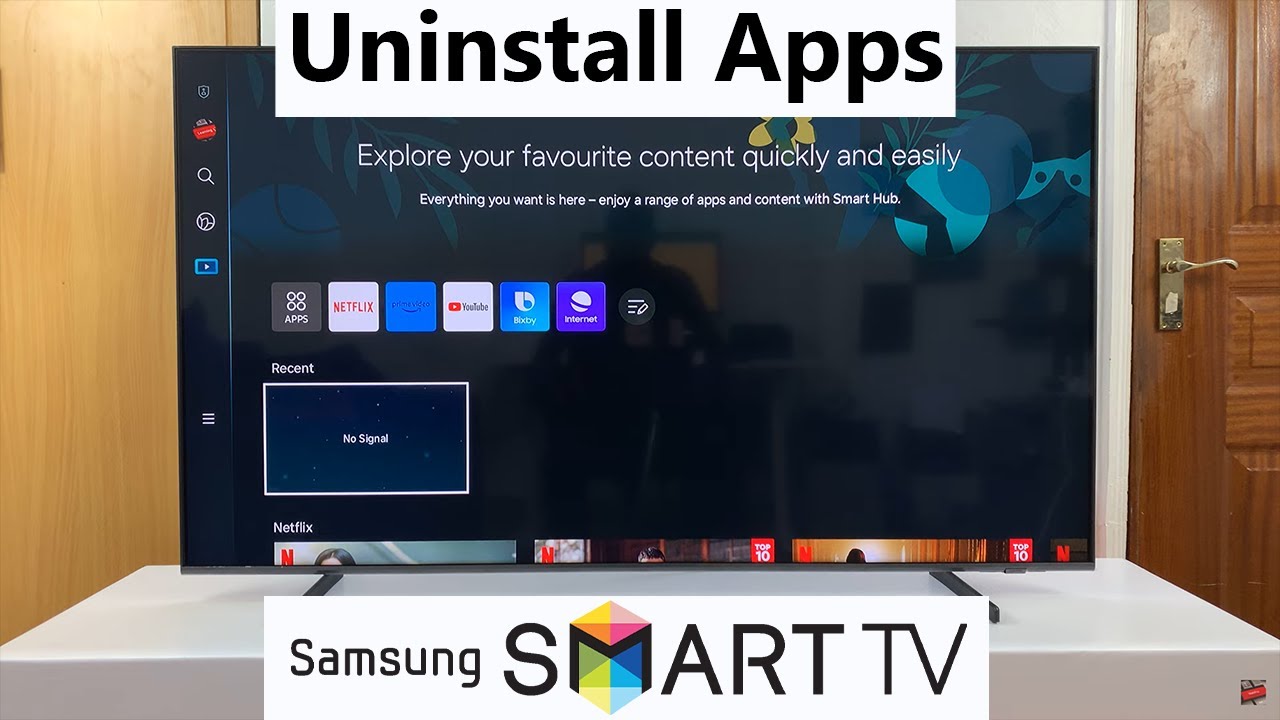
Why uninstall apps on your Samsung TV?
Removing unused apps frees storage, speeds up the TV, and trims a cluttered home screen. Apps can hold cached data that slows navigation and causes crashes when storage gets tight. Knowing how to uninstall app on samsung tv helps you keep performance steady and privacy under control.
I often remove trial apps after testing them. Doing so cleared enough space to update the OS and stopped random freezes. Small cleanup pays off.

Preparation: what to check before you uninstall
Before you remove an app, verify a few basics so you don’t lose a purchase or break a setup.
- Check purchases and subscriptions
- Uninstalling does not cancel subscriptions. Cancel at the service provider or app account as needed.
- Note app login details
- Some apps lose locally saved logins after removal.
- Ensure remote and TV firmware work
- Update the TV if menus look different or Delete options are missing.
- Know which apps are system apps
- Preinstalled system apps often cannot be uninstalled. You can hide them instead.
I once deleted an app without canceling a trial. I kept getting billed. Now I always check subscriptions first.
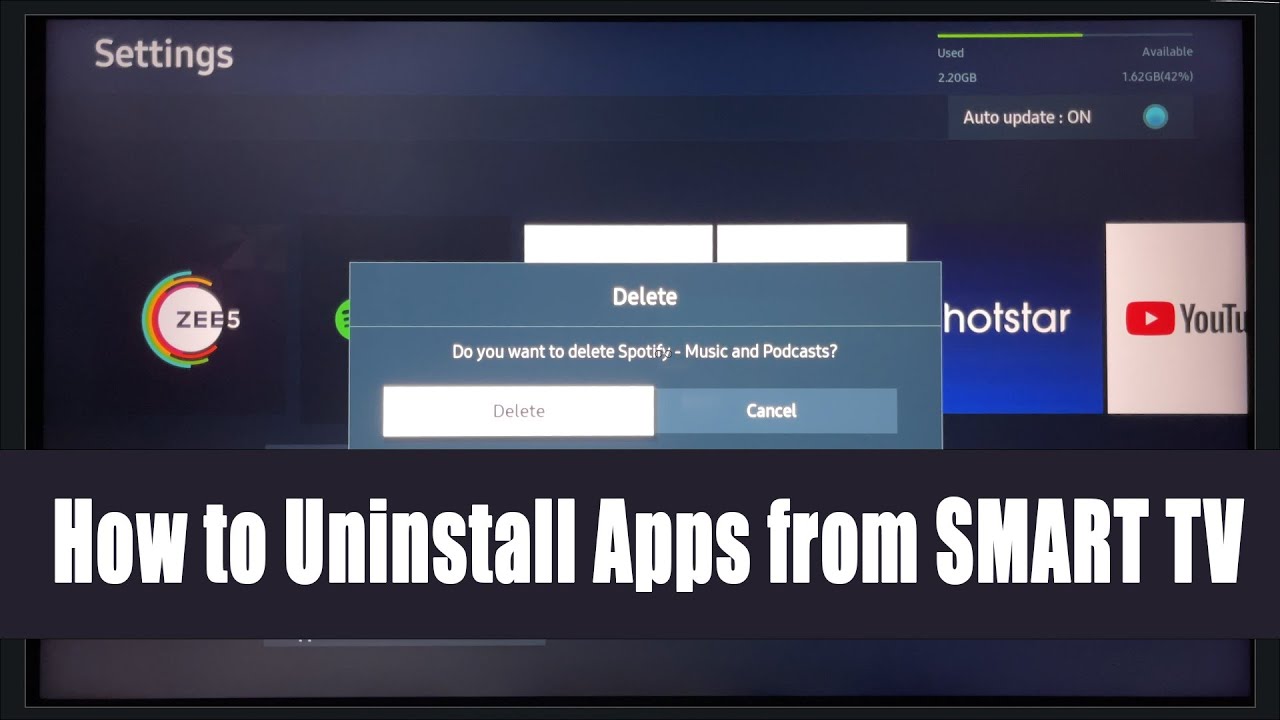
Step-by-step: how to uninstall app on samsung tv (modern Tizen models)
Most Samsung TVs from around 2015 onward run Tizen OS. Here’s the usual process.
- Turn on the TV and press Home on the remote.
- Navigate to Apps or the Apps icon on the Home screen.
- Open Apps and select the Settings gear icon in the top-right.
- Find the app you want to remove from the list.
- Select the app and choose Delete, Remove, or Uninstall.
- Confirm the action when prompted.
Notes and variations
- On some remotes you can highlight the app tile on the Home screen, press the Down button, then select Remove.
- If Delete is greyed out, the app may be built-in.
- After uninstalling, restart the TV to clear caches.
I prefer to uninstall while connected to Wi‑Fi. That keeps the TV synced and prevents odd errors during removal.

How to uninstall app on Samsung TV (older models and Smart Hub)
Older Samsung models use Smart Hub or different menus. Try this method if you don’t see Apps in the Home menu.
- Press Smart Hub on the remote.
- Go to Apps.
- Select the Options or Settings icon (often three dots or a gear).
- Choose My Apps, then highlight the app to remove.
- Select Delete or Remove and confirm.
If you cannot delete the app
- Try signing out of the Samsung account, then sign in again.
- Update the TV firmware.
- Use a factory reset as last resort to remove user-installed apps.
I once had a 2013 TV where Delete wasn’t available until I updated the firmware. After the update, removal worked fine.

Troubleshooting common issues when uninstalling apps
If you run into issues, try these fixes.
- Delete option missing
- Reason: app is a system app. You can hide it or reset Smart Hub.
- App keeps reappearing
- Reason: auto reinstall from your Samsung account or app store settings. Turn off auto-sync or remove from account devices.
- TV won’t let you uninstall due to low permissions
- Sign out and sign in with the TV owner account.
- Uninstall fails with an error
- Restart the TV and try again. Check network and firmware.
Quick tip: Resetting Smart Hub will remove all downloaded apps and their settings. Use it when many apps misbehave.
Tips to manage apps and free storage long-term
Keep your TV clean and fast with these simple habits.
- Uninstall apps you no longer use every few months.
- Limit demo and trial apps to avoid auto-reinstalls.
- Clear app data by uninstalling and reinstalling if an app misbehaves.
- Move streaming to external devices if your TV storage is tiny.
- Use the TV settings to check storage usage regularly.
Personal tip: I keep a list of apps I use weekly. Anything not on that list gets uninstalled. It saves me a lot of slowdowns.
Frequently Asked Questions of how to uninstall app on samsung tv
How do I uninstall a preinstalled app?
Preinstalled system apps usually cannot be uninstalled. You can hide them from the home screen or perform a factory reset to remove user-installed apps, but system apps will remain.
Will uninstalling an app cancel my subscription?
No. Uninstalling an app does not cancel subscriptions. Cancel services through the app provider or your account settings.
Why is the Delete option greyed out on my Samsung TV?
Delete may be greyed out if the app is a system app, if you lack owner permissions, or if firmware needs updating. Try updating the TV or signing in as the owner.
Can I reinstall an app after uninstalling it?
Yes. You can reinstall apps from the Apps store on the TV or by logging into the account used to purchase/download the app.
Will uninstalling apps clear saved settings and login info?
Uninstalling typically removes local data and saved logins. Back up any important settings or create notes for account credentials before uninstalling.
Conclusion
Removing unused apps improves speed, frees storage, and cleans your Samsung TV interface. Follow the step-by-step methods for modern Tizen models or older Smart Hub sets, check subscriptions before you delete, and try simple troubleshooting if options are missing. Take action today: uninstall a few apps you never use and notice how much smoother your TV runs. Share your experience or ask a question in the comments to learn more about managing apps on your Samsung TV.