

Go to Settings > Network, choose Wireless, pick your Wi-Fi network, and enter the password.
Connecting your Samsung TV to Wi-Fi unlocks streaming, updates, and smart features. I’ve set up dozens of Samsung TVs over the years, from older LED sets to the newest QLED models. In this guide I’ll walk you through clear steps for how to connect samsung tv to wifi, cover wired and wireless options, troubleshoot common problems, and share tips from my own experience so you can get fast, reliable streaming in minutes.

Quick wireless setup for most Samsung TVs
Start with the remote and a working Wi-Fi network. Models vary, but the path is similar across TVs. Here’s a fast outline you’ll follow when learning how to connect samsung tv to wifi.
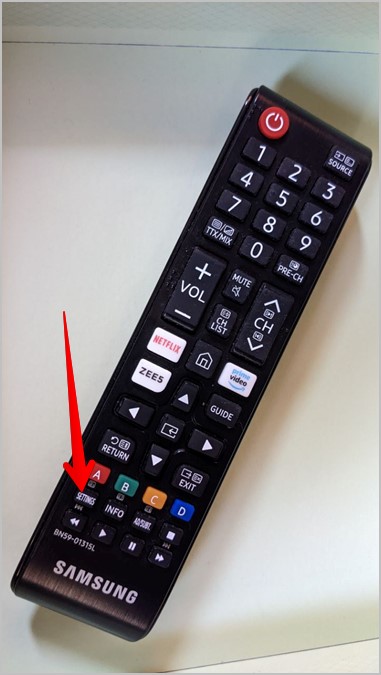
- Turn on the TV and press the Home or Menu button on the remote.
- Open Settings and go to Network or General > Network.
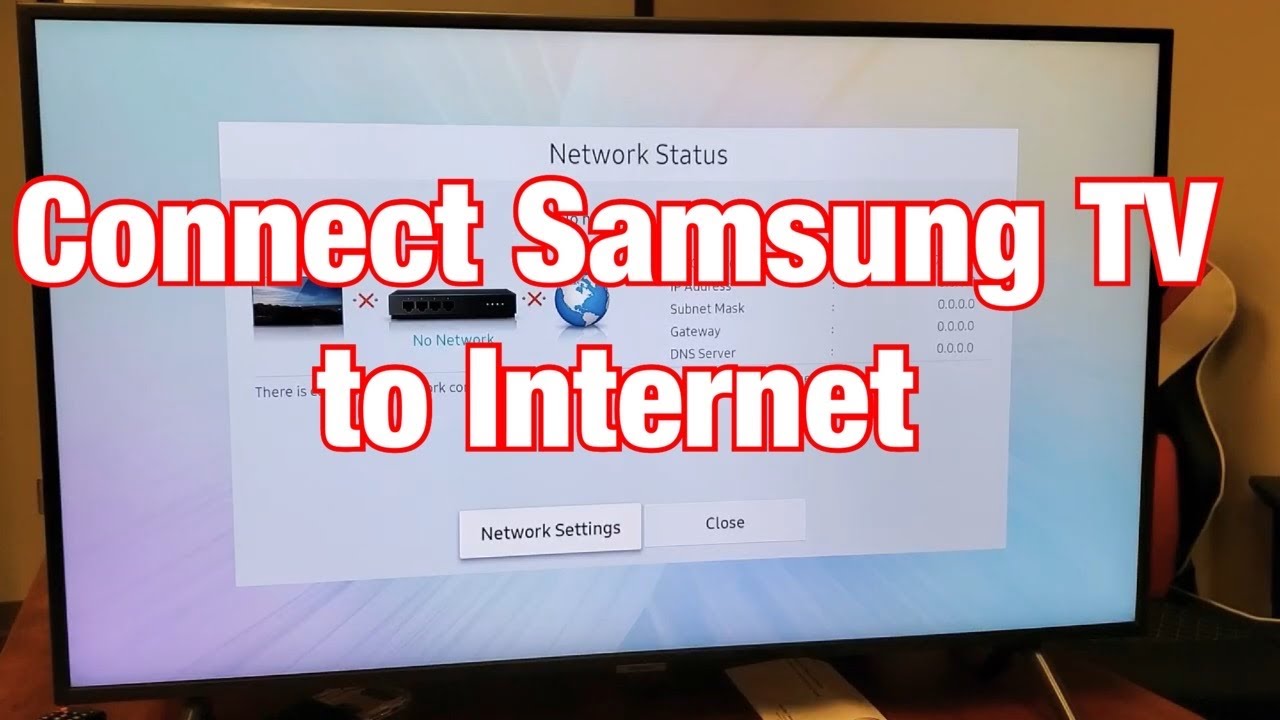
- Choose Open Network Settings or Network Status.
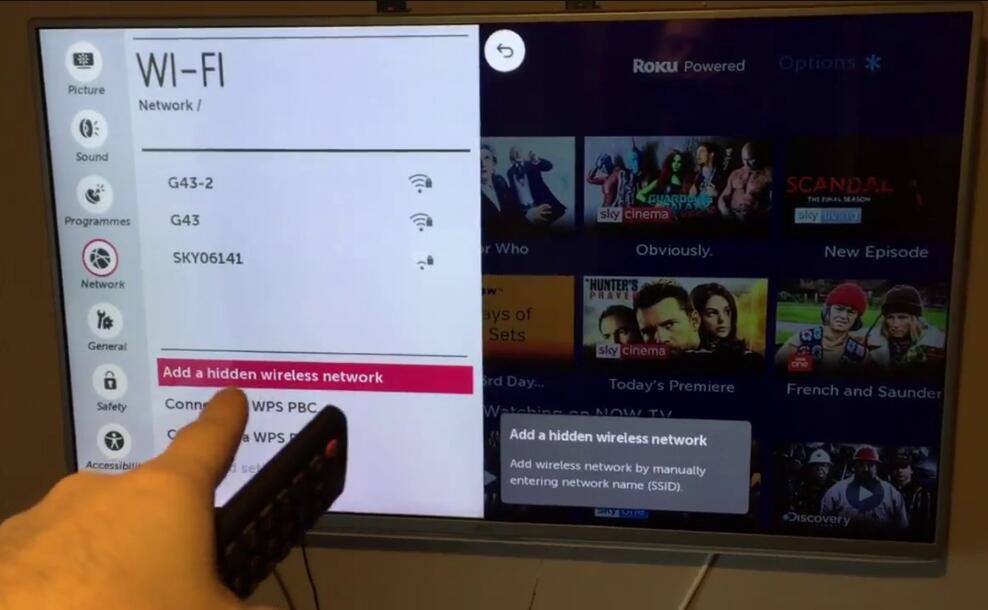
- Select Wireless and let the TV scan for networks.
- Pick your Wi-Fi name (SSID) and enter the password with the remote.
- Confirm the connection and test by opening a streaming app.
I recommend writing your Wi-Fi password down before you start. If your TV asks to accept terms or sign in to Samsung account, follow prompts to finish setup. These steps work for most smart models and are the core of how to connect samsung tv to wifi.
Step-by-step: detailed wireless connection (with screenshots in mind)
If you want a careful walkthrough, follow these simple steps tailored to different Samsung menus. This section is perfect if you’re asking how to connect samsung tv to wifi for the first time.
- Press Home on your remote to open the Smart Hub.
- Navigate to Settings (gear icon).
- Select General or Network depending on your model.
- Choose Network and then Open Network Settings.
- Select Wireless.
- Wait while the TV scans for available networks.
- Choose your Wi-Fi name from the list.
- Enter the Wi-Fi password using the on-screen keyboard. Press Done or OK.
- The TV will connect and show a success message. Test with a streaming app or network status check.
If your TV uses a different menu label, look for Network, Connections, or Internet settings. Learning exactly how to connect samsung tv to wifi on your model becomes easy after one try.

Using WPS to connect quickly
WPS lets you connect without typing a password. Use this only if your router supports WPS. Here’s how to use WPS when you want a quick answer on how to connect samsung tv to wifi.
- On the TV, go to Settings > Network > Open Network Settings.
- Choose Wireless, then select WPS (Push Button).
- Within two minutes, press the WPS button on your router.
- The TV will auto-configure and connect.
WPS can be handy but is less secure than entering a password. Use it for convenience, but disable WPS on your router when not needed.

Wired connection: Ethernet for stability
A wired connection avoids most wireless problems. If you prioritize stability or stream 4K often, here’s how to connect samsung tv to wifi by using Ethernet instead.
- Plug one end of an Ethernet cable into your router.
- Connect the other end to the LAN port on the back of the TV.
- On the TV, go to Settings > Network > Open Network Settings.
- Choose Wired and confirm the connection.
I use a wired connection for my main living room TV. It removes buffering and gives faster firmware updates. If your router is far away, consider using a powerline adapter to keep speeds high.
Troubleshooting common problems
If the TV won’t connect, try these fixes. These steps solve most issues when people ask how to connect samsung tv to wifi.
- Check your password
Make sure the Wi-Fi password is correct. Password mistakes are the most common issue. - Restart devices
Power cycle the TV and router. Unplug both for 30 seconds, then plug back in. - Move the router closer
Weak signal can block connections. Try a temporary relocation or use a Wi-Fi extender. - Reset network settings on the TV
Go to Settings > General > Network > Reset Network to clear old info and start fresh. - Update TV firmware
An outdated system can cause network bugs. Update via Settings > Support > Software Update. - Check MAC filtering
If your router uses MAC filtering, add the TV’s MAC address or disable filtering.
From my tests, restarting both devices often fixes connection timeouts. If problems persist, try connecting another device to the same Wi-Fi to confirm the network is healthy.

Optimize Wi-Fi for best performance
To get the best streaming experience after you connect, follow these tips. They helped me reduce buffering on multiple Samsung sets.
- Choose the right band
Use 5 GHz for faster speeds and less interference when close to the router. Use 2.4 GHz for longer range. - Place router high and central
Positioning matters. Keep the router elevated and unobstructed. - Reduce interference
Move cordless phones, microwave ovens, and baby monitors away from the router and TV. - Check network speed
Run a speed test on another device. For 4K streaming aim for 25 Mbps or higher. - Use QoS settings
Prioritize the TV in the router’s Quality of Service settings to improve streaming performance.
Doing these regularly keeps your Samsung TV streaming smoothly after you learn how to connect samsung tv to wifi.
Security, privacy, and account tips
When you connect your TV, think about safety. A few simple steps protect your network and personal data.
- Use a strong Wi-Fi password
Choose a long, unique password to stop unauthorized access. - Secure the Samsung account
Use a strong password for your Samsung account and enable two-factor authentication if available. - Disable unused features
Turn off features like Universal Plug and Play if you don’t need them. That reduces attack surface. - Keep software updated
Regular firmware updates patch security flaws.
These practices make your home network safer and give you peace of mind while learning how to connect samsung tv to wifi.

Advanced tips and firmware updates
Some setups need extra steps. If you want advanced control when connecting or troubleshooting how to connect samsung tv to wifi, try the following.
- Manual IP settings
Assign a static IP via the TV’s network settings if DHCP fails. - DNS changes
Switch to public DNS like 1.1.1.1 or 8.8.8.8 for faster name lookups in some regions. - Router firmware
Keep router firmware current for best compatibility. - Factory reset as last resort
If nothing works, back up settings and perform a factory reset on the TV.
When I had a stubborn streaming issue, switching DNS solved the problem. Advanced tweaks can help rare cases, but use them carefully.

Frequently Asked Questions of how to connect samsung tv to wifi
How do I find the Network settings on my Samsung TV?
Open the Home or Settings menu and look for Network, Connections, or General > Network. Select Open Network Settings to begin.
Why won’t my Samsung TV see my Wi-Fi network?
Weak signal, router settings, or incorrect region/channel restrictions often block visibility. Move the router closer or disable network isolation on the router.
Can I use a mobile hotspot to connect my Samsung TV to Wi-Fi?
Yes, you can use a mobile hotspot, but speed and data limits may restrict streaming quality. Ensure your phone’s hotspot supports the required bandwidth for your apps.
What if my Samsung TV says “Incorrect Password” but the password is correct?
Try restarting the TV and router, then re-enter the password. If that fails, reset the TV’s network settings and try again.
How do I update my Samsung TV’s software if it’s not connected to Wi-Fi?
You can download firmware on a USB drive from the manufacturer’s site and install it via the TV’s USB update option. This method is useful when wireless updates fail.
Is it better to use wired Ethernet or Wi-Fi for streaming?
Wired Ethernet is more stable and faster for large streams. Wi-Fi is more convenient; use 5 GHz for best wireless performance.
Conclusion
You now have a complete, practical guide on how to connect samsung tv to wifi. Start with Settings > Network, choose Wireless or Wired, and follow simple steps to enter your password or use WPS. If issues occur, try restarting devices, checking passwords, and updating firmware. For best results, use 5 GHz Wi-Fi or Ethernet and keep security practices in place. Try the steps on your TV today, leave a comment about your model and issue, or subscribe for more tips and troubleshooting guides.