

Add apps on your Samsung TV via the Smart Hub in just a few quick steps.
I’ve spent years setting up smart TVs and testing app installs across Samsung models, so I’ll walk you through exactly how to add apps to Samsung TV. This guide covers modern Tizen models and older Smart Hub TVs, with clear steps, troubleshooting tips, and real-life fixes I’ve used. Read on and you’ll be able to find, install, and manage apps on your Samsung TV with confidence.
What you need before you start
Before you learn how to add apps to samsung tv, make sure your TV meets a few simple requirements.
You need an active internet connection, a Samsung account for many installs, and recent firmware.
If your model is older, some apps may not be available. Check your TV year in the settings to confirm compatibility.

How to add apps to Samsung TV: step-by-step (Tizen models)
Follow these steps to learn how to add apps to samsung tv on newer Samsung smart TVs (2015 and newer with Tizen). The steps are short and easy.
- Turn on your TV and connect to Wi‑Fi or Ethernet.
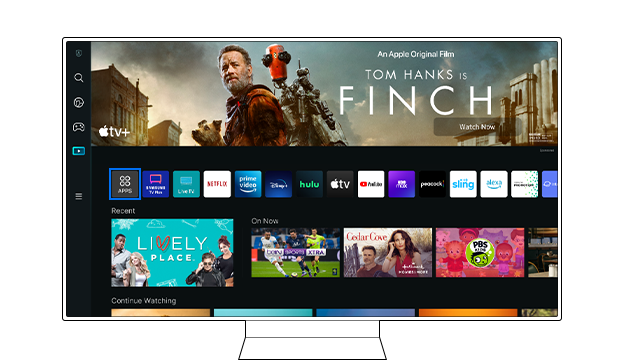
- Press the Home button on the remote to open the Smart Hub.
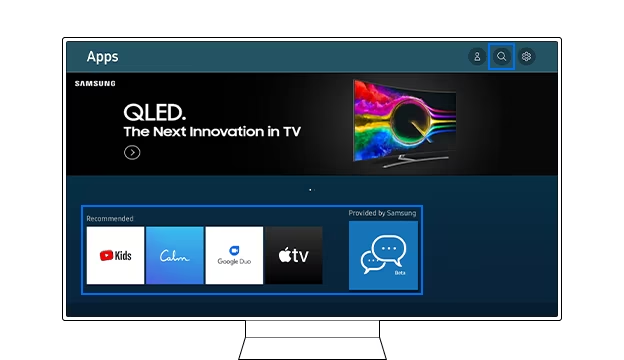
- Select Apps from the menu.
- Use the search icon to type the app name or browse categories.
- Select the app tile, then choose Install or Add.
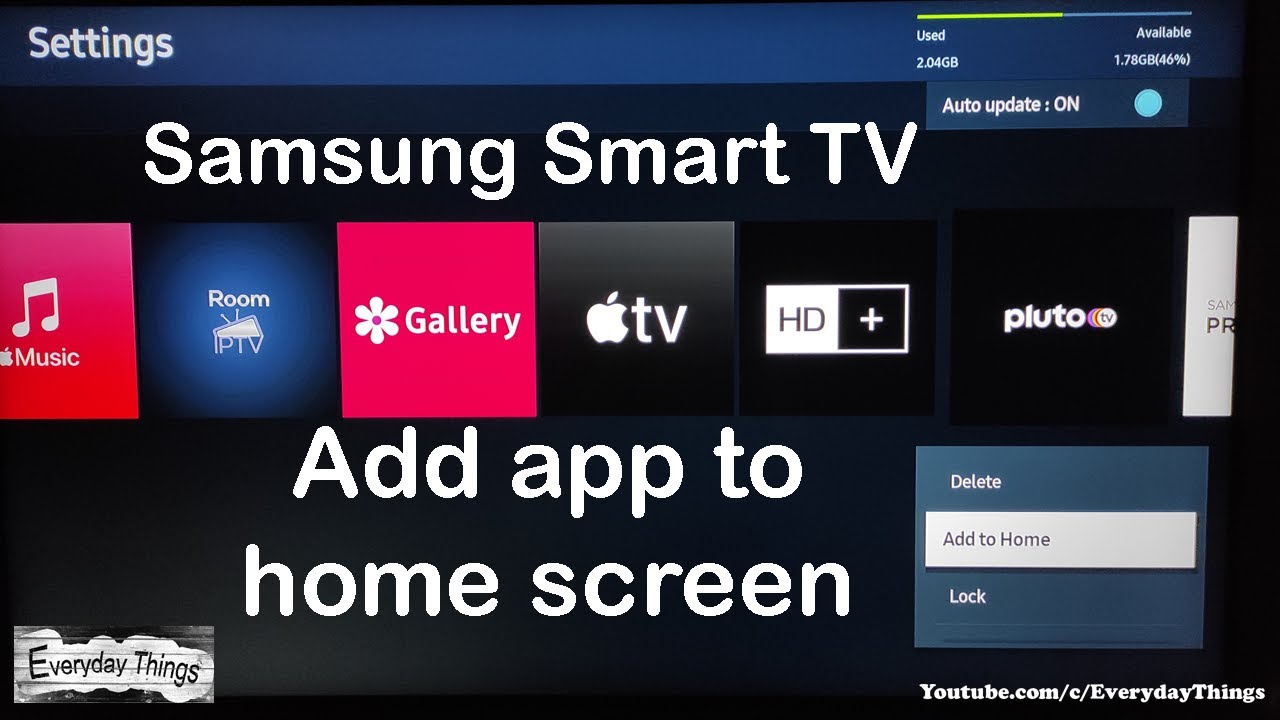
- Wait for the download and then open the app from the Apps panel or Home screen.
If an app asks for updates, accept them. If it asks for sign-in, use your account details. I often install streaming apps this way and it usually takes under two minutes.

How to add apps to Samsung TV on older models
If you own an older Samsung TV, here’s how to add apps to samsung tv when the interface differs.
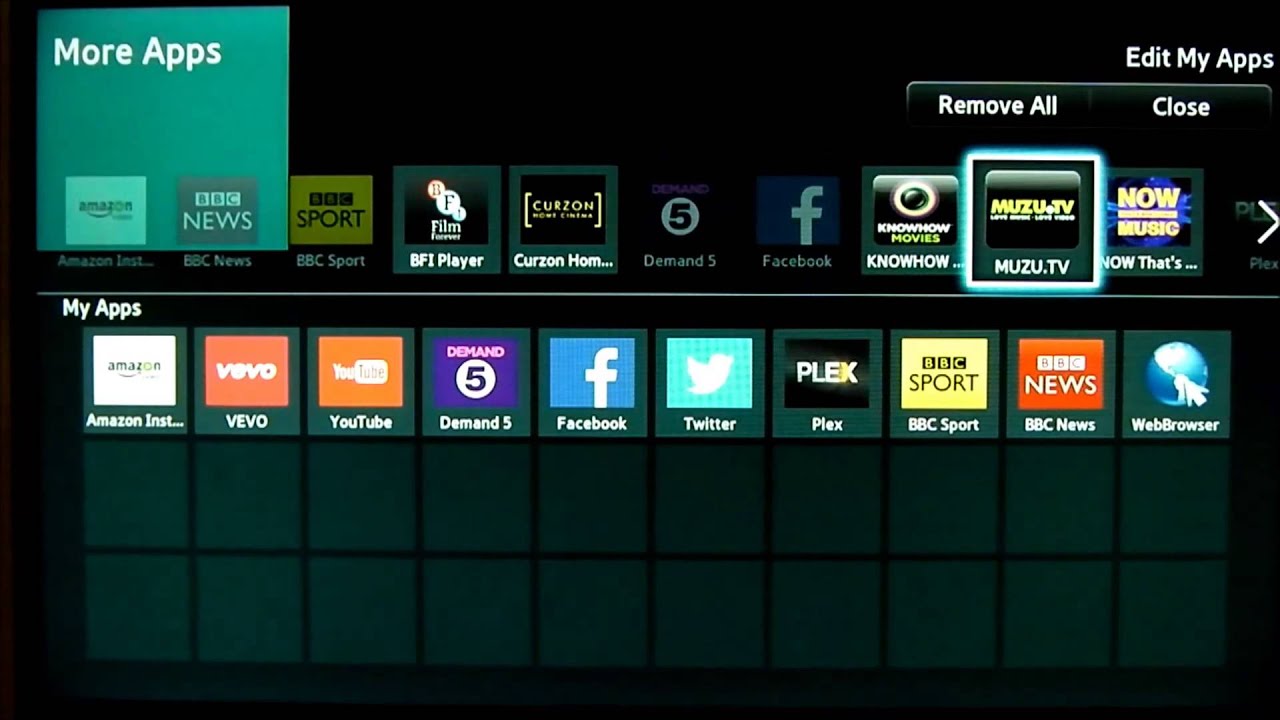
- Find the Smart Hub or Apps button on older remotes and press it.
- Choose Samsung Apps or Featured Apps from the menu.
- Browse or use the search box for the app name.
- Select Download or Install and wait for the process to finish.
Older TVs may lack newer apps. If an app is missing, check for a firmware update or consider a streaming stick as a workaround.
Sideloading, USB installs, and APKs — what works and what doesn’t
Many people wonder how to add apps to samsung tv using USB or APK files. The short truth is simple.
- Samsung smart TVs run Tizen OS, not Android, so Android APK files will not install.
- There is no supported USB sideload method for official Tizen apps.
- Developer mode exists on some models for testing, but it’s not a simple install method for normal apps.
If you can’t install an app, using a Chromecast, Roku, Fire TV, or Apple TV device is often the easiest alternative. I’ve used a streaming stick to run an app that my older Samsung TV didn’t support.
Troubleshooting when you can’t add apps to Samsung TV
If you try how to add apps to samsung tv and it fails, try these fixes. These steps solved issues for me many times.
- Restart the TV and modem/router to clear network issues.
- Update the TV software from Settings > Support > Software Update.
- Sign out and back into your Samsung account or reset Smart Hub in Settings to refresh apps.
- Free up storage by uninstalling unused apps or clearing cache if your model allows it.
- If an app says “Not available in your country,” try changing the Samsung account country (note this can be complex and may require creating a new account).
If none of these steps work, contact Samsung support or use a separate streaming device.
Tips, best practices, and maintenance
These tips will make how to add apps to samsung tv faster and more reliable. They come from real use.
- Keep your TV firmware updated. Updates often add app compatibility and bug fixes.
- Use a wired Ethernet connection for large app downloads when possible.
- Create a Samsung account ahead of time to speed installation.
- Regularly remove apps you don’t use to free storage and improve performance.
- Use parental controls and app locks if multiple people use your TV.
I once lost access to several apps after skipping multiple updates. Updating fixed it quickly. Small maintenance saves time later.

Frequently Asked Questions of how to add apps to samsung tv
How do I find the Apps section on my Samsung TV?
Press the Home button on your remote to open Smart Hub, then select Apps. Older remotes may have a dedicated Smart Hub or Apps button.
Do I need a Samsung account to install apps?
Many apps require a Samsung account to download from the app store. Creating an account is free and quick.
Why can’t I install a specific app on my Samsung TV?
The app may be unavailable for your TV model, region, or OS version. Update firmware, check country settings, or use an external streaming device.
Can I install Android APKs on a Samsung TV?
No. Samsung smart TVs run Tizen OS, so Android APK files are not compatible. Use supported apps or a streaming stick.
How do I update apps on my Samsung TV?
Go to Apps, then My Apps or the app tile, and choose Update if available. You can also set apps to update automatically in settings.
Conclusion
You now know clear, practical ways to add apps to samsung tv across model years. Try the steps, keep your TV updated, and use the troubleshooting tips if anything goes wrong. Take one small step now: install a favorite app and test it. If this guide helped, leave a comment or subscribe for more simple TV tips and tricks.