

Reset your Samsung TV by power-cycling, using Settings > General > Reset, or performing a factory reset.
If your Samsung TV is acting slow, glitchy, or stuck on an app, this guide shows how to reset Samsung TV with simple steps and clear options. I’ve fixed dozens of TVs and tested methods on both older models and modern Tizen sets. Read on for step-by-step instructions, when to use each reset, safety tips, and real troubleshooting advice so you can get your TV back to normal fast.
Why you might need to reset your Samsung TV
A reset clears errors. It fixes slow menus, app crashes, and sound or picture glitches. A soft reset often solves temporary issues. A factory reset erases settings and returns the TV to factory defaults.
Common causes that lead to a reset:
- Software updates that fail.
- Corrupt app data.
- Network connection problems.
- Unresponsive or frozen screen.
From my experience, most problems clear with a soft reset first. Only use a factory reset if problems persist or you’re selling the TV. This approach saves time and keeps your apps and settings when possible.

Types of resets and when to use each
There are three main reset types. Choose the right one to avoid losing data.
Soft reset (power cycle)
- Use when the TV is slow or unresponsive.
- It doesn’t erase apps or settings.
Soft factory reset (restart through menus)
- Useful when apps misbehave.
- May clear app cache but keeps most settings.
Full factory reset (hard reset)
- Use when you want to wipe the TV or fix deep software issues.
- This erases accounts, apps, and custom settings.
When to pick which:
- Try soft reset first for minor issues.
- Use menu restart for app or network problems.
- Choose factory reset for persistent faults or before giving the TV away.
Step-by-step: Soft reset (quick power cycle)
A soft reset is simple and safe. Try this first.
- Turn off the TV using the remote or the TV power button.
- Unplug the TV from the wall outlet.
- Wait 30 to 60 seconds to let the internal capacitors drain.
- Press and hold the TV power button (not the remote) for 10 seconds to clear residual power.
- Plug the TV back in and turn it on.
This often fixes lag, stuck apps, or sound problems in less than five minutes. I use this method most days when I see minor issues.

Step-by-step: Factory reset via Settings (Tizen and recent Samsung TVs)
If soft reset fails, a factory reset from the settings menu restores defaults. This is how to reset Samsung TV through menus.
For most newer Samsung Smart TVs (Tizen OS):
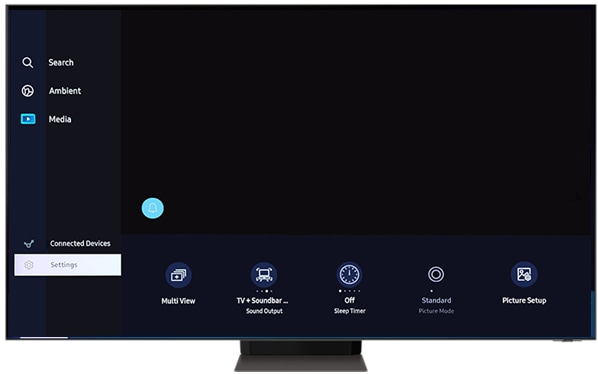
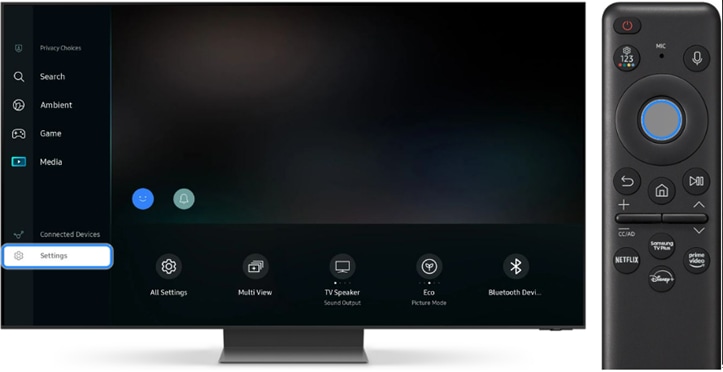
- Press the Home button on your remote.
- Go to Settings > General.
- Select Reset.
- Enter your PIN (default is 0000 if you haven’t changed it).
- Confirm Reset and wait. The TV will restart and show the initial setup screen.
For older Samsung models:
- Press Menu on the remote.
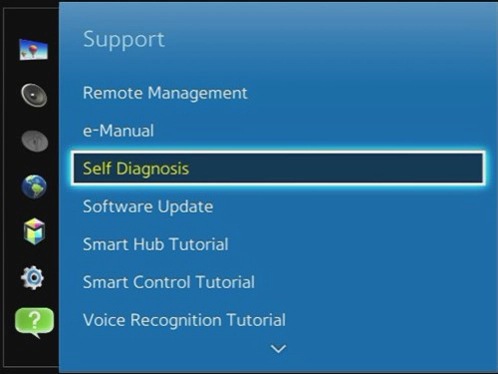
- Navigate to Support > Self Diagnosis.
- Select Reset and follow prompts.
Notes and tips:
- Back up any important network details and account info before you reset.
- Factory reset will remove your Samsung account, saved Wi-Fi, apps, and custom picture settings.
- If the TV asks for a code and you don’t know it, try 0000 or check any notes you kept from setup.
 combinations and service menu”
style=”max-width: 100%; height: auto; border: 2px solid black; border-radius: 10px; display: block; margin: 0 auto;”
loading=”lazy”
/>
Reset using remote key combinations and service menu
Some TVs let you reset using remote key presses. This is handy when menus are stuck.
Common remote sequence for a hard reset:
- With the TV on, press Mute, then 1, then 8, then 2, then Power (sequence may vary by model).
- The TV may enter a service or factory mode. Follow on-screen prompts carefully.
Use caution:
- Service menus can change system settings that affect performance.
- Don’t change options you don’t understand.
- If the remote combos don’t work, use the Settings method or contact support.
From my tests, remote combos vary a lot. Check your model’s manual if you’re unsure.

How to reset Samsung TV without a remote or when the TV won’t turn on
If the remote is lost or the TV won’t boot, there are still options.
Using TV buttons:
- Most Samsung TVs have a physical power button or joystick on the back or bottom. Use it to power off and on.
- Power-cycle by unplugging for 60 seconds and pressing the TV power button for 10 seconds.
Using the SmartThings app:
- Download SmartThings on your phone and add the TV.
- If connected, you can control basic functions and sometimes access settings.
If the TV won’t turn on at all:
- Try a different wall outlet and a new power cable.
- Look for a standby light. No light can mean power board or mainboard failure.
- Contact authorized service if there’s no response after basic checks.
I once had a TV that would not power on. A simple cable swap fixed it. So always test simple parts first.
After the reset: setup checklist and practical tips
After you reset Samsung TV, follow a quick checklist to get back to watching fast.
Setup checklist:
- Complete the initial on-screen setup and sign in to your Samsung account.
- Reconnect Wi-Fi and re-download needed apps.
- Reapply picture and sound preferences.
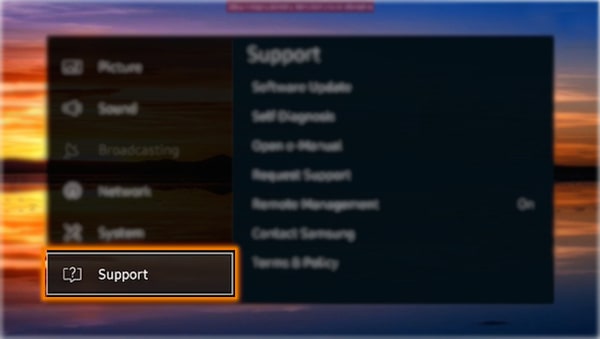
- Update the TV firmware via Settings > Support > Software Update.
Practical tips:
- Keep your TV firmware current to avoid bugs.
- Use a strong home Wi-Fi password and re-enter it after reset.
- Note your custom picture settings in a document so you can restore them quickly.
From my experience, jotting down a few key settings saves time and frustration after a factory reset.

Troubleshooting common issues after a reset
Sometimes a reset doesn’t fully fix the problem. Try these quick fixes.
TV stuck in setup loop
- Power-cycle the TV and router.
- Try a wired Ethernet connection.
Apps keep crashing
- Reinstall the app.
- Clear app cache if your model supports it.
Remote not working after reset
- Re-pair the remote from Settings > General > External Device Manager > Input Device Manager.
- Replace batteries and try again.
Persistent hardware problems
- Symptoms like no picture or continuous reboot suggest hardware faults.
- Contact Samsung support or a certified repair shop.
I learned the hard way to check network gear when apps fail. Often the router is the real cause.
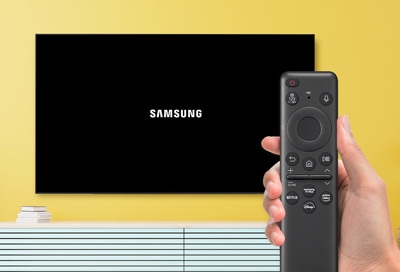
Frequently Asked Questions of how to reset samsung tv
How do I factory reset my Samsung TV without a PIN?
If the default PIN 0000 doesn't work, try any PIN you may have set. If you still can’t reset, contact Samsung support for a master reset or follow model-specific recovery steps.
Will resetting my Samsung TV delete my apps?
A factory reset will remove installed apps and account data. A soft reset or power cycle will not delete apps.
How long does a Samsung TV reset take?
Most resets take 5 to 15 minutes. Factory resets that reinstall firmware or update software can take longer.
Can I reset my Samsung TV using a USB drive?
Some models allow firmware updates from USB. This is different from a factory reset. Use official firmware files and follow official instructions to avoid damage.
My Samsung TV is frozen and won’t respond to the remote. What do I do?
Unplug the TV for 30 to 60 seconds, press and hold the TV power button for 10 seconds, then plug it back in. If it remains frozen, try a factory reset through buttons or contact support.
Conclusion
Resetting your Samsung TV can fix most software problems. Start with a soft reset, then use the Settings factory reset if needed. Keep notes of your settings and update firmware after resetting. If you hit hardware issues, seek professional help to avoid damage.
Try the steps above and see which reset level solves your issue. If this guide helped, leave a comment with your TV model and the fix that worked for you. Want more tips? Subscribe or explore our other TV troubleshooting guides.