

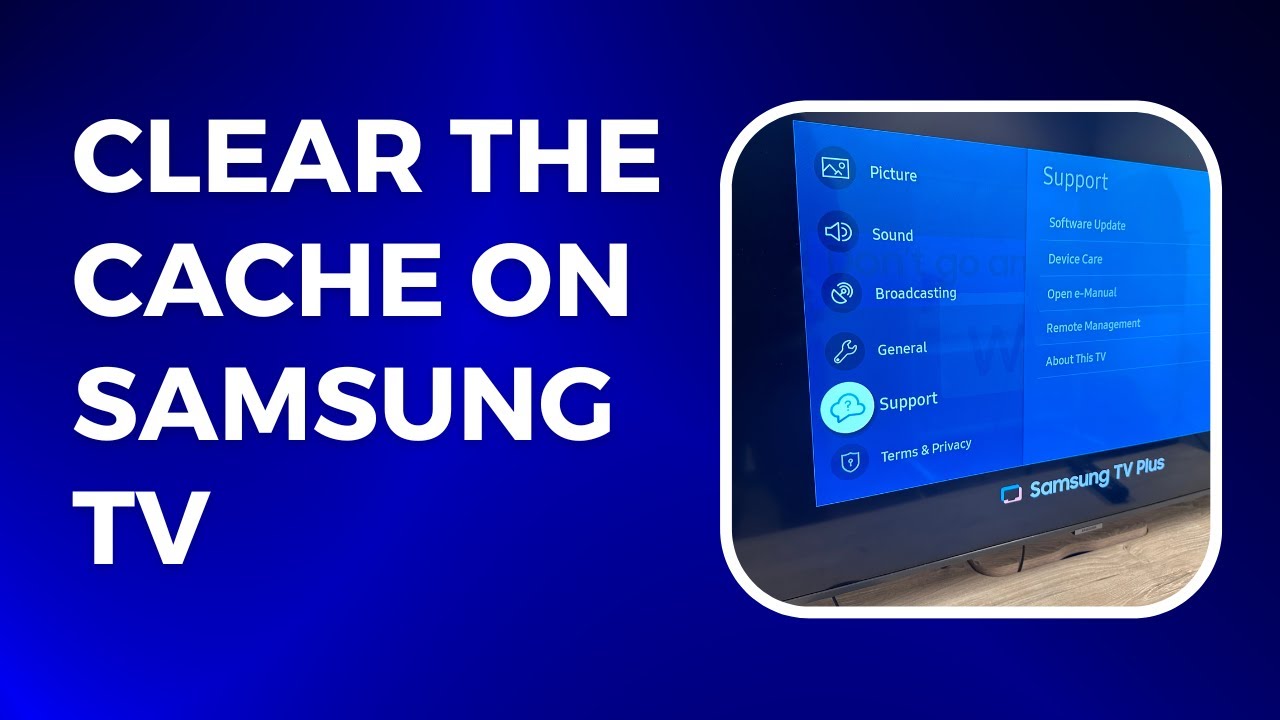
On Samsung Smart TVs, go to Settings > Apps, pick the app or Browser, then Clear Cache.
I’ve worked with smart TVs and helped many friends fix sluggish streaming. This guide clearly explains how to clear cache on samsung tv step-by-step. You’ll get simple, tested methods for app cache, browser cache, and whole-system fixes. I’ll share real tips from hands-on experience, common mistakes to avoid, and quick troubleshooting so you can get your TV running smoothly again.

Why clearing cache on your Samsung TV helps
Cache stores temporary data from apps and the web. Over time that data grows. When the cache gets large, apps may lag, freeze, or show old content. Clearing cache frees space and forces apps to load fresh data.
Benefits you’ll notice after learning how to clear cache on samsung tv
- Faster app loading and smoother navigation.
- Fewer crashes and reduced freezing during playback.
- Updated app behavior and refreshed search results.
From personal tests, clearing cache fixed buffering on streaming apps and stopped the TV browser from showing outdated pages. It’s a safe first step before more drastic fixes.

How to clear cache on samsung tv — step-by-step (most Samsung Smart TVs)
These steps work on most modern Samsung Smart TVs that run Tizen OS. If your menus look different, try the browser or app-specific methods below.
Step-by-step to clear an app’s cache
- Press the Home or Smart Hub button on your remote.
- Go to Settings.
- Select Apps or App Manager.
- Choose the app you want to fix.
- Select Clear Cache (or Clear Data to reset the app completely).
- Restart the app.
If you don’t see Clear Cache, you can Delete or Uninstall the app and then reinstall it from the app store. That also removes cached files.
Quick tip: After you learn how to clear cache on samsung tv for one app, repeat for other heavy apps like streaming services or web browser apps.

How to clear browser cache on Samsung TV
If the built-in web browser shows old pages, clear the browser cache.
Steps to clear the TV browser cache
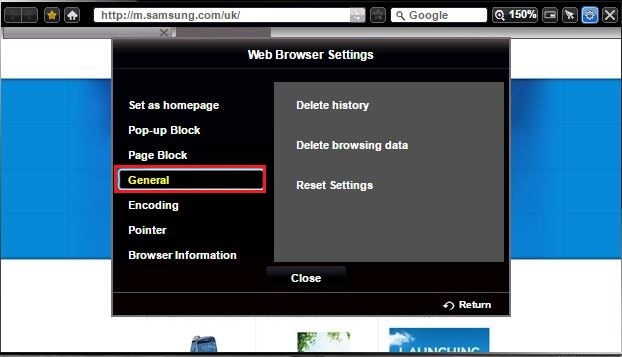
- Open the TV Web Browser app.
- Press the Tools or Menu button on the remote.
- Choose Settings or Privacy.
- Select Delete Browsing Data or Clear Cache and Cookies.
- Confirm and restart the browser.
This removes stored images, cookies, and temporary files that can slow web browsing on your TV.
Power cycle, soft reset, and clearing temporary files
Sometimes cache-like issues are fixed with a simple power cycle or soft reset.
Power cycle (safe and quick)
- Turn off the TV with the remote.
- Unplug the TV from the wall outlet.
- Wait 30 to 60 seconds.
- Plug the TV back in and turn it on.
Soft reset (useful if remote has power button)
- Hold the TV power button on the remote for 10 seconds until the TV restarts.
- This clears small temporary files and refreshes the system.
These steps often resolve lag without changing app settings. If you’re learning how to clear cache on samsung tv, pair a cache clear with a power cycle for best results.
 uninstall and reinstall apps”
style=”max-width: 100%; height: auto; border: 2px solid black; border-radius: 10px; display: block; margin: 0 auto;”
loading=”lazy”
/>
When to uninstall and reinstall apps
If clearing cache doesn’t help, reinstalling the app removes deeper stored data.
When to reinstall
- App still crashes after clearing cache.
- App behaves oddly or shows login issues.
- App update fails repeatedly.
How to reinstall
- Open Settings > Apps or go to the Apps area.
- Select the app and choose Delete or Uninstall.
- Reinstall from the Samsung App Store.
- Sign back in and test.
Reinstalling is a reliable way to reset app files without resetting the whole TV.
When to consider a factory reset
A factory reset clears everything. Use it only when other steps fail.
When to factory reset
- Multiple apps fail after updates.
- TV is extremely slow across menus.
- Persistent system errors or frequent reboots.
How to factory reset
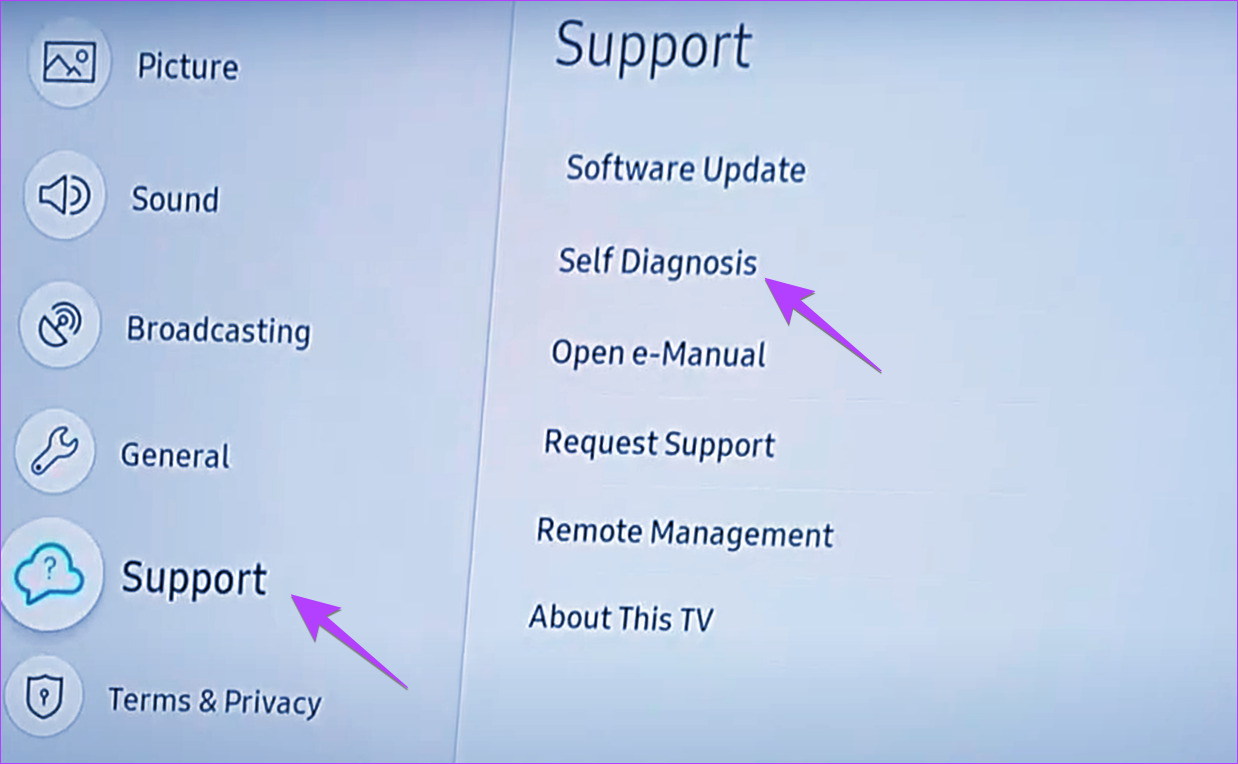
- Go to Settings > Support > Self Diagnosis > Reset.
- Enter your PIN (default is usually 0000).
- Confirm and wait for the TV to restore factory settings.
Warning: Factory reset removes settings, app installs, and accounts. Back up or note your settings first.

Troubleshooting common problems after clearing cache
If clearing cache on samsung tv didn’t fix the issue, try these checks.
Checks and fixes
- Update TV software via Settings > Support > Software Update. New firmware can fix bugs.
- Check your internet. Slow Wi‑Fi causes streaming problems that look like cache issues.
- Free up space by removing unused apps and downloaded content.
- Try a different user profile or guest mode to isolate account issues.
- If a single app misbehaves, contact the app’s support or reinstall the app.
From my experience, software updates often solve lingering problems after cache clears. Keep your TV updated to avoid repeat issues.

Preventive maintenance to avoid cache buildup
Keep your TV healthy with small routines.
Easy habits to follow
- Restart your TV weekly to clear temporary files.
- Uninstall apps you no longer use.
- Update apps and TV firmware regularly.
- Clear browser cache monthly if you browse a lot.
- Limit auto-downloads and background app activity when possible.
These steps reduce the frequency you must clear cache on samsung tv and improve long-term performance.
Personal tips and mistakes to avoid
I once cleared a TV’s cache and skipped rebooting. The app still misbehaved until I restarted the TV. From that, here are practical lessons.
What worked best for me
- Clear cache, then power cycle the TV — that combo fixed most slowdowns.
- Reinstall apps only when cache clears don’t help.
- Keep a small list of installed apps to avoid clutter.
- Use simple remote commands and avoid factory reset unless needed.
Common mistakes
- Rushing to factory reset without trying app reinstall or power cycle.
- Forgetting to update firmware after troubleshooting.
- Clearing data when you only needed to clear cache, causing lost settings or logins.
These small changes save time and preserve your settings while fixing speed issues.
Frequently Asked Questions of how to clear cache on samsung tv
How often should I clear cache on my Samsung TV?
Clear cache when apps act slow or after major app updates. Monthly checks are fine for regular users; weekly if you browse a lot.
Will clearing cache delete my app logins?
Clearing cache generally does not remove logins. Clearing app data or doing a reinstall can remove saved logins and settings.
Can I clear cache for all apps at once?
Most Samsung TVs don’t offer a single “clear all caches” option. Uninstalling unused apps and restarting the TV is the closest method.
Does clearing cache improve streaming quality?
Clearing cache can reduce buffering caused by corrupted temporary files. It won’t change your internet speed but can improve app responsiveness.
What if I don’t see a Clear Cache option?
If the option is missing, uninstall and reinstall the app or update the TV software. If problems persist, contact Samsung support.
Will a factory reset fix cache-related issues?
Yes, a factory reset clears all cached and stored data system-wide. Use it as a last resort because it removes all settings and apps.
Conclusion
Clearing cache on samsung tv is a simple, effective step to fix slow apps, outdated content, and playback hiccups. Start with app-specific cache clears, power cycles, and browser cleanup. Reinstall apps before doing a factory reset, and keep firmware updated to prevent repeat issues. Try the steps today, note what helps, and share your results or questions below — I’d love to help you further.