

How to screen share on Samsung TV: use Smart View, AirPlay, or Screen Mirroring from your device.
I’ve spent years setting up TVs for family movie nights, remote work calls, and quick phone photo sharing. This guide explains how to screen share on Samsung TV clearly and simply. You’ll learn step-by-step methods for Android, iPhone, Windows, and Mac, plus troubleshooting tips I’ve tested in real homes and offices. Read on to pick the method that fits your device and get a smooth mirror experience.

Quick overview of how to screen share on Samsung TV
Screen sharing on Samsung TV means sending video, audio, or your whole screen from a phone, tablet, or computer to the TV. You can use built-in options like Smart View and Screen Mirroring, AirPlay for Apple devices, or a wired HDMI connection for stable results. Pick wireless for convenience and wired when you need perfect sync or higher quality.
Prepare your Samsung TV and devices
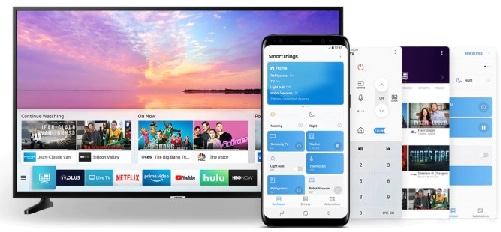
Make sure your Samsung TV supports the method you want. Newer Samsung Smart TVs support Smart View and AirPlay 2. Older models might only support Miracast or external adapters.
Follow these quick prep steps:
- Turn on your Samsung TV and connect it to the same Wi-Fi network as your device.
- Open TV Settings and confirm Screen Mirroring, Smart View, or AirPlay is enabled.
- Restart both TV and device if you’ve installed updates recently.
I once tried to mirror a phone and kept failing until I restarted the TV. Small reboots fix many issues.
Screen share from Android phones and tablets
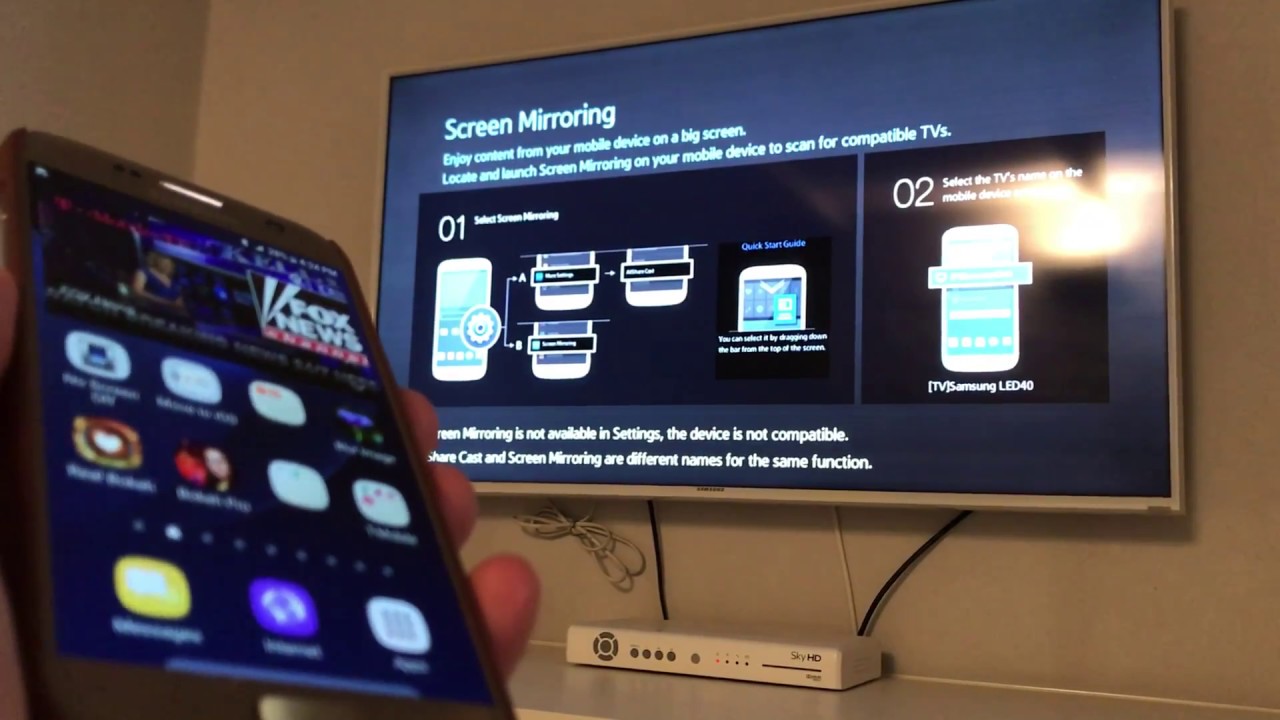
Most Samsung and many other Android phones use Smart View or Screen Mirroring. These tools use Miracast or Samsung’s SmartThings features.
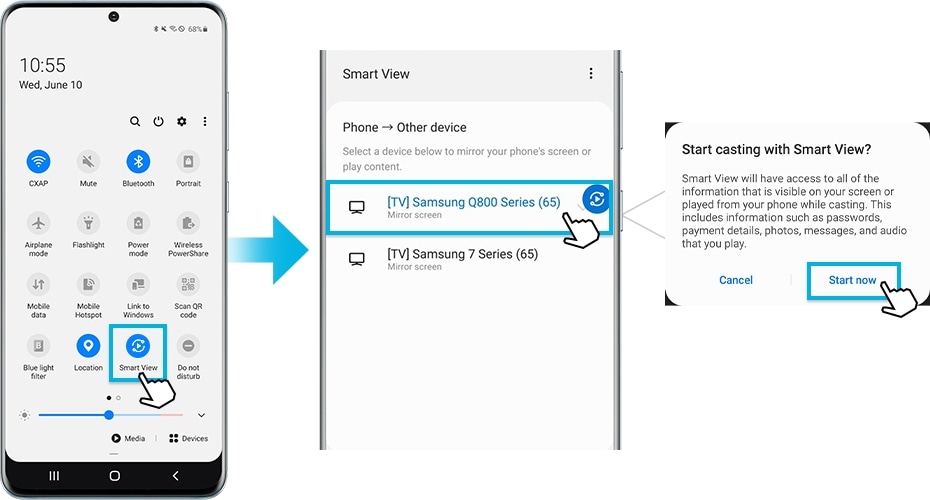
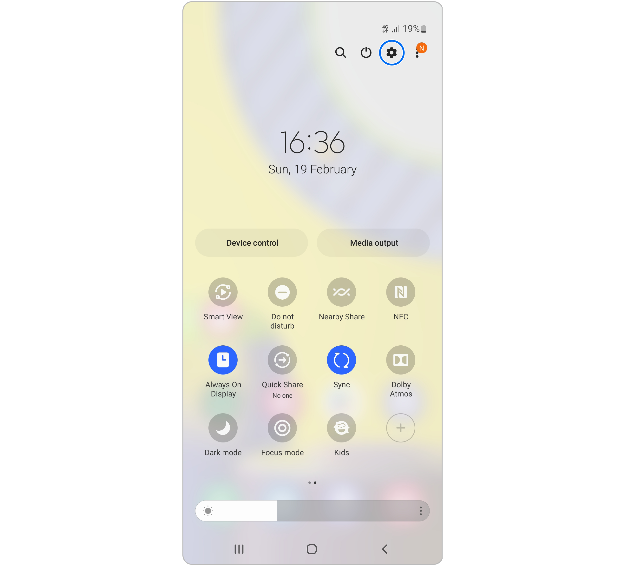
Step-by-step (Smart View on Samsung phones):
- Swipe down to open Quick Settings.
- Tap Smart View.
- Select your Samsung TV from the list.
- Accept the connection on the TV if prompted.
If your phone is not Samsung:
- Open Settings > Connected devices or Cast.
- Enable Cast and choose your Samsung TV.
- If the TV doesn’t appear, ensure Wi-Fi is the same and try toggling Wi-Fi off and on.
Tip from experience: Close heavy apps before mirroring to reduce lag.
Screen share from iPhone and iPad (AirPlay)
Recent Samsung TVs support AirPlay 2, which makes screen sharing from iPhone or iPad simple.
How to use AirPlay:
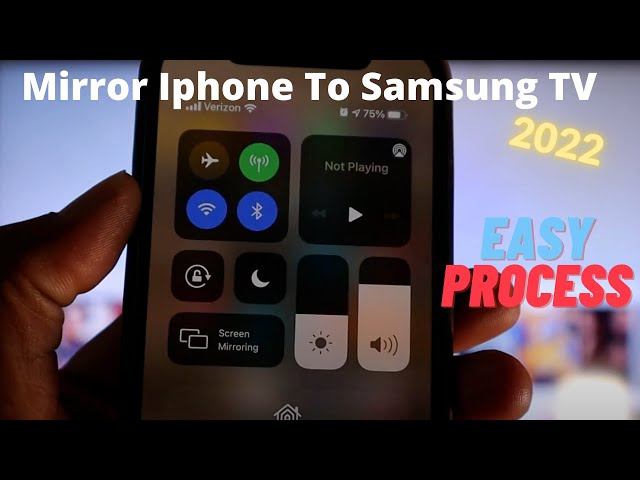
- Open Control Center on your iPhone or iPad.
- Tap Screen Mirroring.
- Choose your Samsung TV from the list.
- Enter the code shown on TV if requested.
If AirPlay doesn’t show:
- Check TV Settings > General > Apple AirPlay Settings and turn AirPlay on.
- Make sure both devices are on the same Wi-Fi network.
I use AirPlay for quick casting of photos and streaming apps. It’s usually smooth and reliable.

Screen share from Windows PC
Windows can connect to Samsung TVs via Miracast or through HDMI for a direct link.
Miracast (wireless) steps:
- On PC, open Settings > System > Display.
- Click Connect to a wireless display.
- Select your Samsung TV.
- Accept pairing on the TV.
HDMI (wired) steps:
- Connect HDMI cable from PC to TV.
- Select the HDMI input on the TV.
- Set PC to extend or duplicate screen in Display settings.
I use HDMI for work presentations. It avoids lag and delivers steady video and audio.

Screen share from Mac
Macs can use AirPlay to mirror to compatible Samsung TVs or use HDMI for wired connections.
AirPlay steps:
- Click the AirPlay icon in the Mac menu bar.
- Select your Samsung TV.
- Choose Mirror Built-in Display or Use as Separate Display.
HDMI steps:
- Plug your HDMI cable (use adapter if needed).
- Select HDMI input on TV.
- Adjust display settings on the Mac if needed.
AirPlay on Mac works well for streaming and slides. For video editing, I prefer HDMI for color accuracy.
Troubleshooting common screen sharing issues
If screen sharing on Samsung TV fails, try these fixes. I’ve used these steps many times and they solve most problems.
Common issues and quick fixes:
- Device not showing up
- Ensure both devices are on the same Wi-Fi network and restart them.
- Choppy video or audio lag
- Move devices closer to the router or use HDMI for higher stability.
- TV asks for code but nothing appears
- Turn AirPlay/Smart View off and on in TV settings and try again.
- Device keeps disconnecting
- Update firmware on TV and device. Disable power saving modes on the phone.
- No sound from mirrored content
- Check TV volume and phone output. Try unplugging headphones and reconnecting.
If you still struggle, factory resetting network settings on the TV has saved me as a last resort.
Tips, security, and performance
Small changes can make screen sharing on Samsung TV smoother and safer. These tips come from real use and help avoid surprises.
Practical tips:
- Use 5 GHz Wi-Fi band for lower interference and better speed.
- Close background apps on phones for better performance.
- Set a screen-sharing PIN on the TV when available to prevent unauthorized casting.
- For long sessions, connect power to the casting device to avoid battery drain.
- Keep firmware updated on both TV and casting device for best compatibility.
Security note: Public Wi-Fi is risky for screen sharing. Use a private network or wired HDMI in public settings.
Frequently Asked Questions of how to screen share on samsung tv
How do I enable screen mirroring on my Samsung TV?
Go to TV Settings > General or Network and enable Screen Mirroring, Smart View, or AirPlay depending on your model. The exact menu name varies by year and model.
What app lets me cast to a Samsung TV?
Samsung phones use Smart View or SmartThings, while iPhones use AirPlay. Other Android phones can use Cast in settings or third-party apps that support Miracast.
Why won’t my phone find my Samsung TV?
Usually because the devices aren’t on the same Wi-Fi, or one device needs a restart. Also check that screen sharing is enabled on the TV.
Is screen sharing on Samsung TV safe?
Yes, when you use a secured home network and enable TV prompts or PINs. Avoid sharing on public Wi-Fi without extra protections.
Can I mirror with no Wi-Fi?
You can with some TVs using Miracast Wi-Fi Direct or with an HDMI cable. Miracast creates a direct connection that doesn’t use your router.
Conclusion
You now know multiple ways to screen share on Samsung TV, from Smart View and AirPlay to Miracast and HDMI. Start by picking the method that fits your device, prepare your TV and network, and follow the step-by-step instructions. Try a short test before any big meeting or movie night to iron out issues. If you found this guide helpful, try the steps now, leave a comment with your device model, or subscribe for more easy tech tips.