

Open the Samsung Smart Hub, find the app, and choose Install to add it to your TV.
If you want to know exactly how to download an app on samsung tv, you’re in the right place. I’ve spent years setting up smart TVs for family and friends and troubleshooting app installs across different Samsung models. This guide walks you step-by-step, covers common problems, and shares practical tips so you can install streaming, gaming, or utility apps quickly and reliably.
What to know before you start
Knowing a few basics saves time and frustration when learning how to download an app on samsung tv. Not every Samsung TV runs the same software. Most models from 2015 onward use Tizen OS and include the Samsung Apps store or Smart Hub. Older models may have limited app support or no app store at all.
- Check your TV model and year in Settings to confirm compatibility.
- Make sure your TV has a stable internet connection for downloads.
- Sign in with a Samsung account to access region-restricted apps.
- Verify available storage if the TV has limited space and you plan to install multiple apps.
These quick checks make the actual process of how to download an app on samsung tv faster and smoother for most users. If you’re unsure about your model or software, I’ll show how to verify it below.

Step-by-step: how to download an app on samsung tv (modern Tizen TVs)
This is the most common method for current Samsung smart TVs. Follow these short steps to install apps from the TV itself.
- Power on your TV and connect it to Wi-Fi or Ethernet.
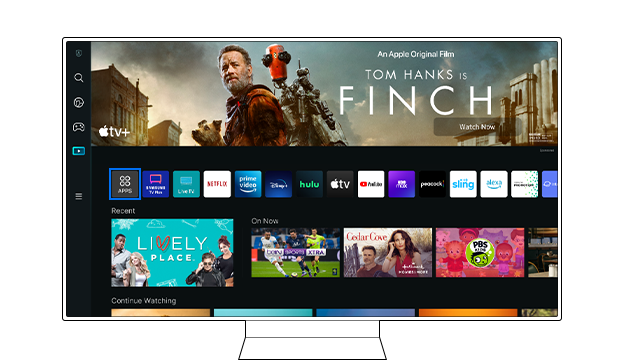
- Press the Home or Smart Hub button on your remote to open the main menu.
- Select Apps from the menu to open the Samsung App store.
- Use the Search icon or browse categories to find the app you want.
- Select the app tile, then choose Install or Download.
- Wait for installation to finish, then open the app from Apps or the Home screen.
If the app asks for permissions or additional sign-in, follow the on-screen prompts. That’s the core process for how to download an app on samsung tv using the built-in store.

Alternate methods: mobile app, web, and external devices
Not every situation lets you install directly on the TV. Here are other ways to get apps or app-like functionality.
- Use the Samsung SmartThings or Samsung TV app on your phone to browse and push apps to the TV where supported.
- Sign in to your Samsung account on a web browser and manage apps or purchases, then sync the TV.
- Use a streaming stick or set-top box (Roku, Fire TV, Chromecast, Apple TV) to run apps not available on your Samsung TV.
- Cast or screen mirror from a phone or laptop if the native app is unavailable.
In my experience, using a mobile app to start the install can be faster for searches and typing. These options help when learning how to download an app on samsung tv isn’t possible directly due to model limits.
Troubleshooting common problems
If you run into issues while trying to learn how to download an app on samsung tv, try these fixes.
- Install button is grayed out: Sign in to your Samsung account and check region settings. A restart of the TV can refresh the store.
- App not available: Update TV firmware. If still missing, the app may not be supported in your country or on your model.
- Not enough storage: Uninstall unused apps, or clear cache/data where the TV allows it.
- Download fails or stalls: Reboot the TV and router, then try again. Test internet speed to rule out connectivity issues.
- App crashes after install: Update the app if updates are available, or reinstall it. A factory reset is a last resort.
I once spent an afternoon troubleshooting an install where the TV needed a software update. After the update the app appeared immediately. Regular firmware updates often resolve many app-store issues.

Tips, best practices, and lessons from experience
These practical tips make the process of how to download an app on samsung tv smoother and help prevent common mistakes.
- Keep your TV software updated monthly to get new apps and bug fixes.
- Create or link a Samsung account before you start searching for apps.
- Use a wired Ethernet connection for large downloads or slow Wi-Fi.
- Organize your Home screen to keep frequently used apps accessible.
- Avoid installing too many apps on older TVs to prevent slowdowns.
From personal trials, I recommend installing one app at a time and testing it before adding more. That helps identify storage or compatibility issues early.

Frequently Asked Questions of how to download an app on samsung tv
How do I find the app store on my Samsung TV?
Press the Home or Smart Hub button on your remote and select Apps. That opens the Samsung App store for your TV where you can browse or search.
Do I need a Samsung account to download apps?
Yes, signing in with a Samsung account is usually required to download or purchase apps and to access some region-specific content.
Why can’t I find certain apps on my Samsung TV?
Some apps are restricted by region, model, or firmware. Updating the TV and checking regional settings helps, but some apps may not be supported on older models.
Can I install apps from a USB drive?
Samsung TVs generally don’t support sideloading apps from USB like Android devices. Use official store methods or an external streaming device instead.
What if an app won’t install or keeps failing?
Restart the TV and router, update firmware, check storage, then try again. If problems persist, contacting Samsung support or reinstalling the app may help.
Conclusion
Downloading apps on a Samsung TV is usually straightforward once you know your model, keep your TV updated, and use a Samsung account. Follow the Smart Hub steps, try alternate methods when needed, and use the troubleshooting tips here to fix common problems quickly. Start by checking your TV’s software and network, then install one app and explore its settings.
Take action today: try installing a favorite streaming app now, tidy up unused apps, and sign in to your Samsung account to unlock the full app experience. Leave a comment if you run into a specific problem—I’ve likely seen it and can help.